Bulk Copy
Summary
I planned bulk copy to replace the repeated creation of individual re-contracts with loading existing contracts, editing only what changes, and creating them together. The platform’s first use of Excel-style UI retains the familiar workflow while adding input validation and connecting collection-work and schedule transfers.
- Role
- Product Owner (planning lead, policy definition, UI and workflow design)
- Outcome
- Bulk contract creation, familiar Excel workflow retained, linked work and schedule transfers
Problem
Repeating Creation and Transfers for Every Re-contract
Price or disposal-facility changes often required multiple re-contracts while retaining most existing information. The CX team listed the targets in Excel, then created each contract individually or asked developers to insert the contract data. Operators handling creation themselves repeated the same procedure for every target.
POs retrieved existing contract information through Metabase, while operators manually copied collection manuals, notes, and tags into the new contracts. The Allbaro disposal plan did not carry over and needed separate attention. Information missed during registration became individual requests for developer corrections followed by another review.
Transfers remained after the contracts were created. Accounting listed the previous contracts’ unbilled collection work, while operations listed the work that needed schedule changes. Each team processed its list item by item or passed it to developers for data changes and reviewed the results afterward. Creating multiple re-contracts therefore repeated not only contract creation but also the preparation, handoffs, and follow-up checks across three teams.
Planning Decision
Preparing Contracts Together While Retaining the Excel Workflow
I prioritized bulk copy over bulk editing because recurring requests involved creating multiple re-contracts from existing information rather than modifying the existing contracts.
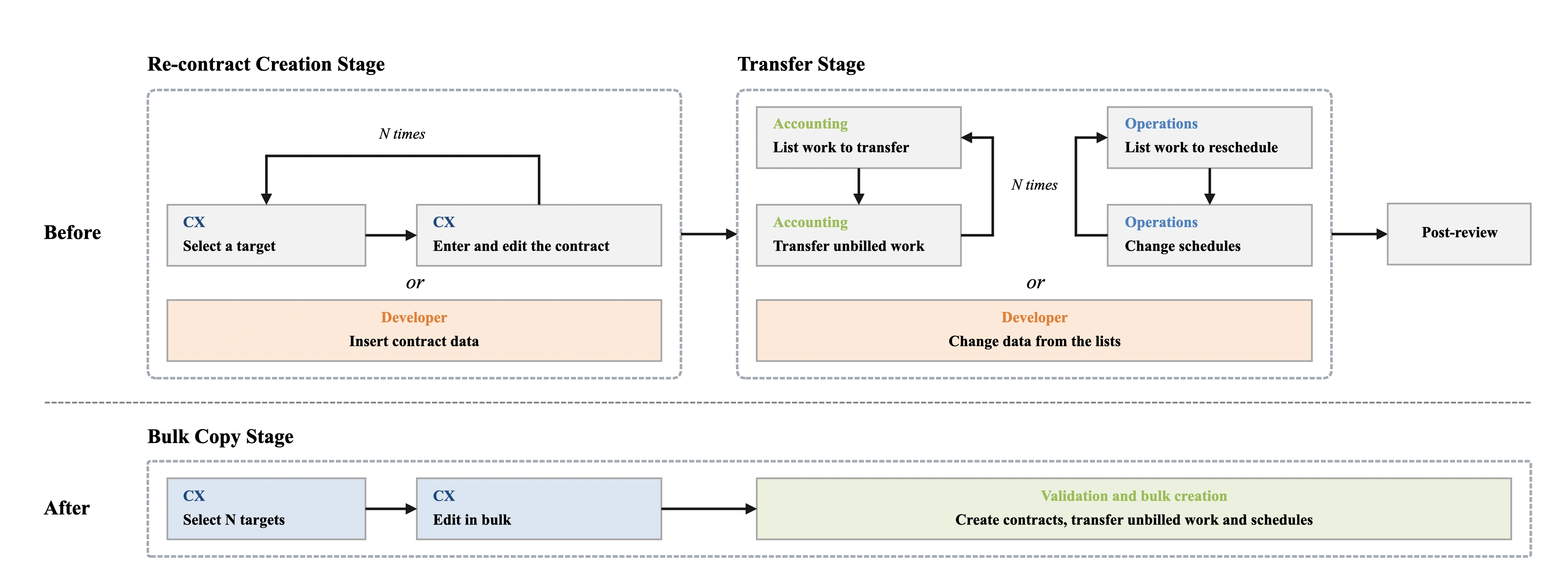
I first reviewed how the CX team listed targets and managed contract-specific changes in Excel. Replacing that familiar workflow entirely would increase the effort needed to understand and adopt the new feature. I therefore introduced the platform’s first use of Excel-style UI and interactions, aiming to retain as much of the existing workflow as possible while handling contracts together.
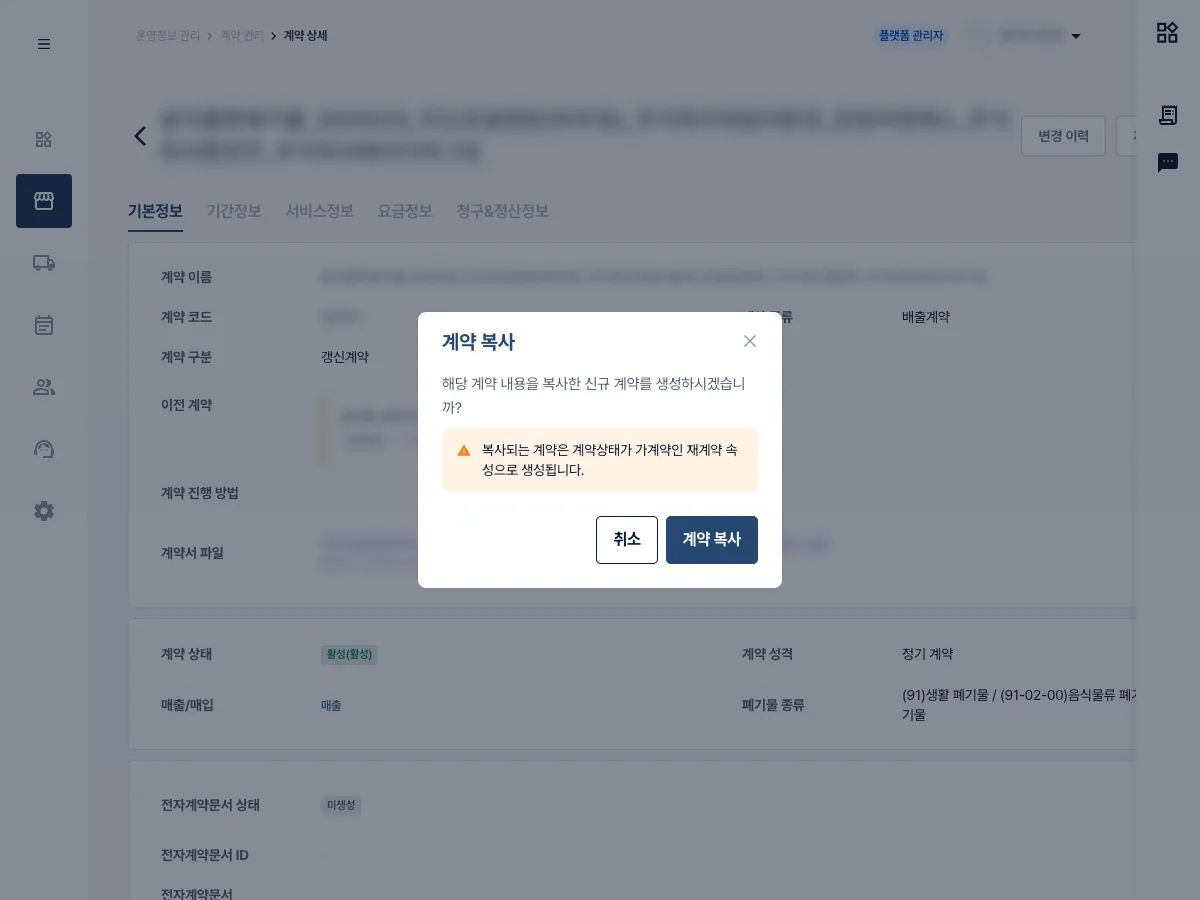
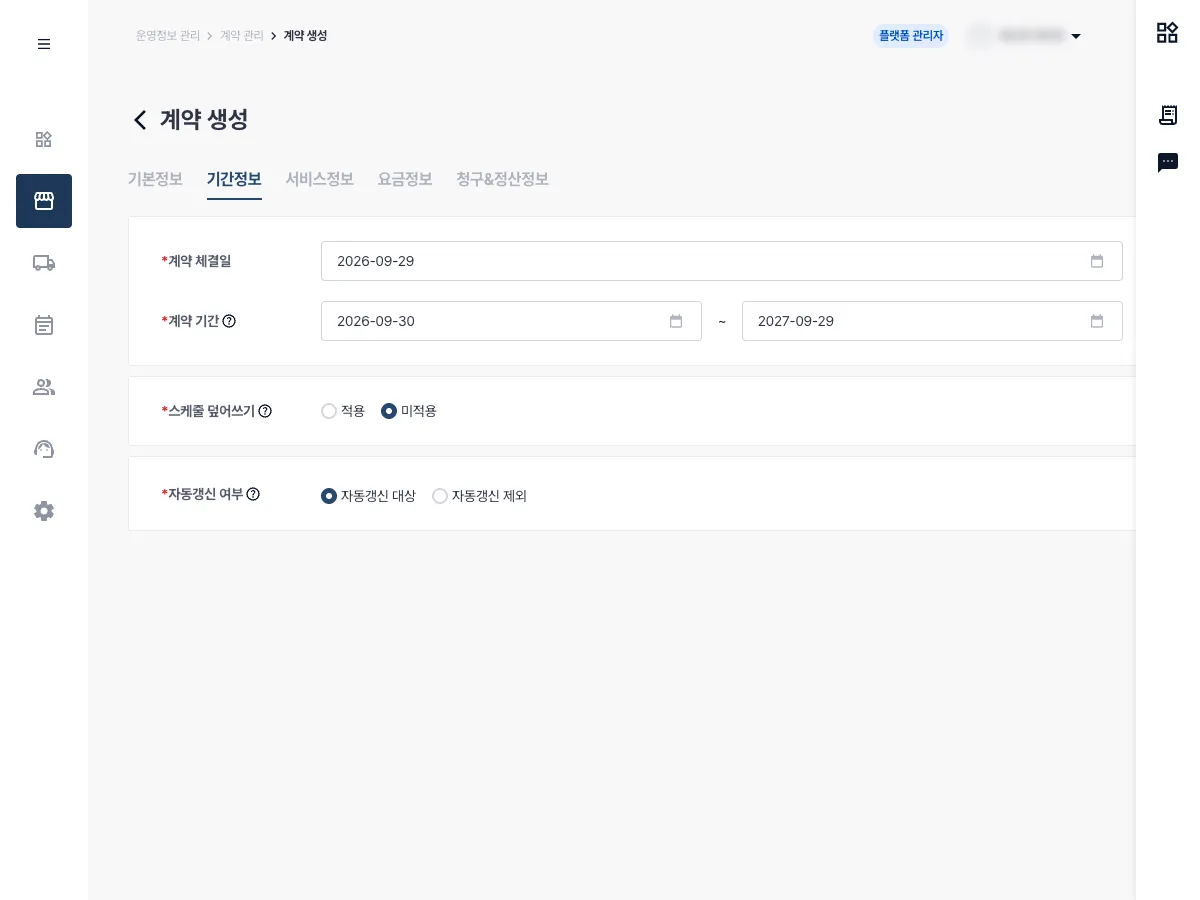
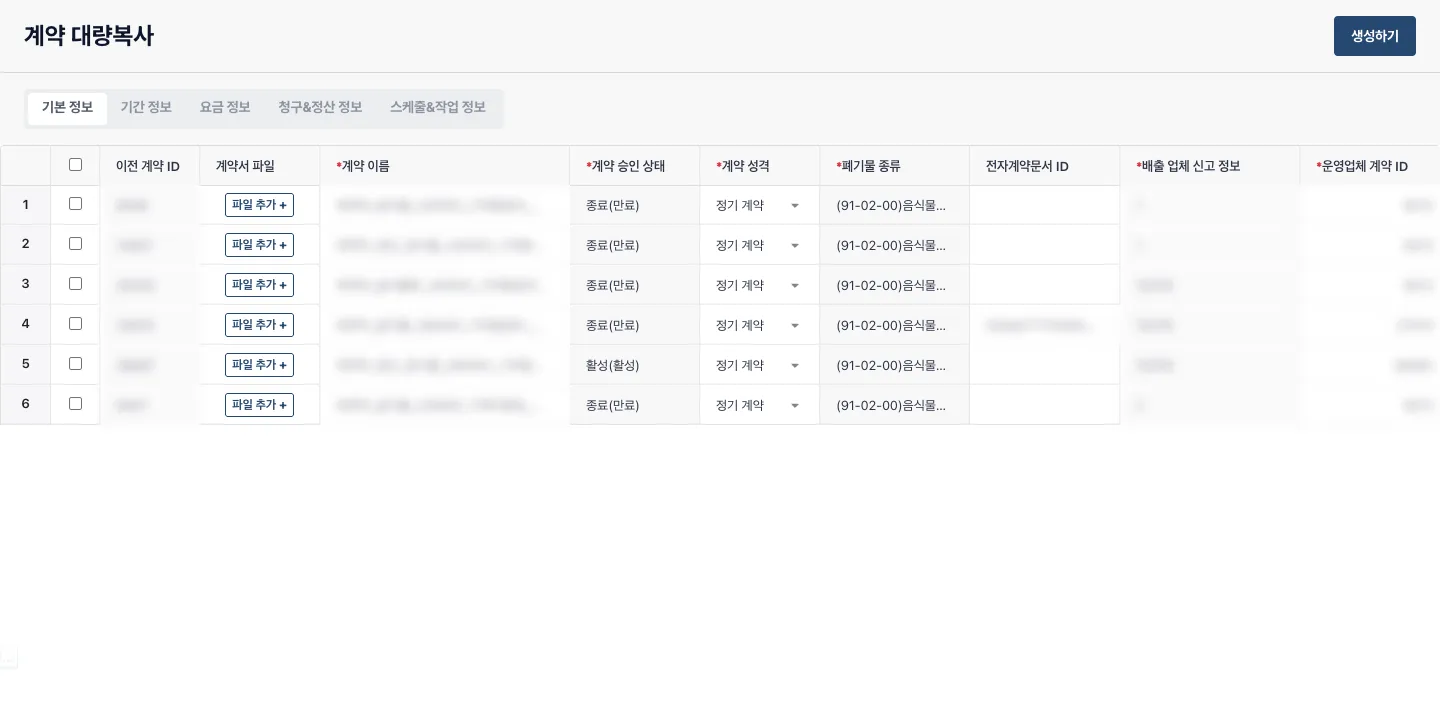
Operators load the contracts to copy by searching on screen or entering previous contract IDs in Excel. Collection manuals, notes, and tags carry over, leaving only the changed fields to edit. I limited the feature to collection contracts and specified that every new contract would link to its predecessor.
With designers and developers, I specified an editor for comparing contracts in rows and columns and copying or pasting cells. Shared values, such as a re-contract start date, can be changed in bulk, while prices that vary by contract can be adjusted individually. Operators also need to distinguish the contract and value they are editing, so selected cells that were hard to identify in design QA were included for correction.
Input Validation
Finding and Correcting Editing Errors Before Creation
I retained flexible spreadsheet editing while separating checks during input from checks before submission, so invalid values would not lead to multiple incorrect contracts and later correction requests.
I specified checks for required values, date formats, and the relationship between start and end dates, with errors marked in the affected cells. Operators need to locate values such as an end date earlier than its start date while editing, so they can correct them before creating contracts even when working across many rows.
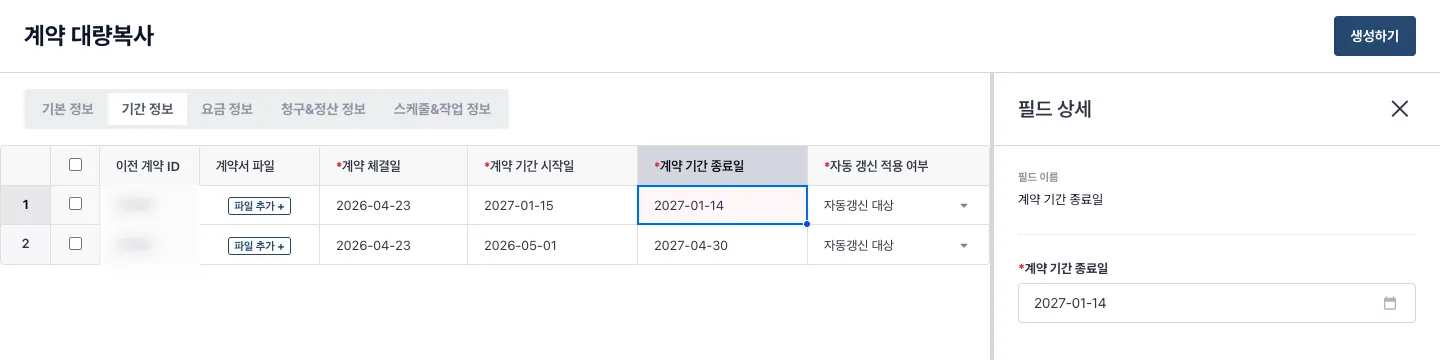
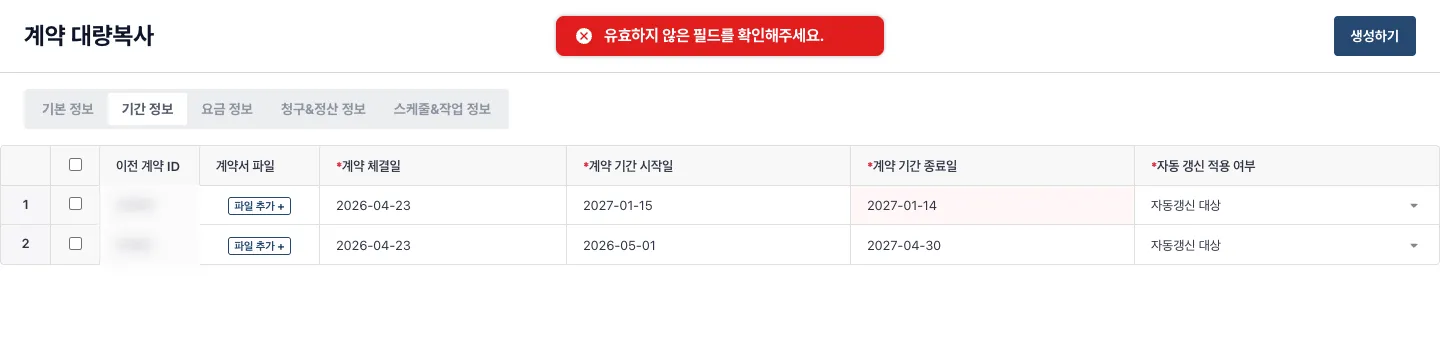
An invalid end date remains in the period tab after an operator moves to the basics tab. To catch errors outside the current view, I required every tab to be checked again when Create is selected. An error blocks submission before a request reaches the server and returns the operator to the affected tab and cell for correction.
Transfer Policy
Separating Editable Fields from Automatic-transfer Eligibility
Valid input does not by itself mean that existing collection work and schedules can transfer to a new contract. Changed contract information can affect past processing relationships as well as subsequent collection and billing.
Unlike a contract name or signing date, a change to waste type or discharger registration information requires checking whether previous collection work and Allbaro handover information still fit the new contract. I specified separate automatic-transfer checks even for fields that operators can edit. I also worked through settlement and contract-operation requirements with accounting and the CX team.
Adding a processor can preserve the processing route recorded for existing work. Replacing or removing one could leave the facility that actually handled the work absent from the new contract, so I limited automatic transfers to additions that retain existing processors. Switching between bag delivery and other plans was also excluded because it changes the work type and billing criteria.
| Area | Transfer allowed after change | Conditional | Change excludes transfer |
|---|---|---|---|
| Basics | Name, approval state, nature, e-contract ID | Processor (only if added) | Waste type, discharger registration info |
| Period | Sign date, term (start/end), auto-renew flag | - | - |
| Rate | Discounts / surcharges | Plan type, plan fields | - |
| Billing / tax | Taxable & VAT-included flags | - | - |
Contract Transition
Selecting Transfers at Creation and Applying Them at Transition
Some re-contracts need neither collection-work transfers nor schedule changes. I therefore made the two separate choices.
For re-contracts created in advance, the transfer choices are recorded and processed when the actual start date arrives and the contract transitions. Unbilled-work and schedule transfers follow the policies defined in the re-contract process redesign. Even when several new contracts share a predecessor, only one can receive automatic transfers, preventing the same work from moving to multiple contracts and making the basis for billing and collection unclear.
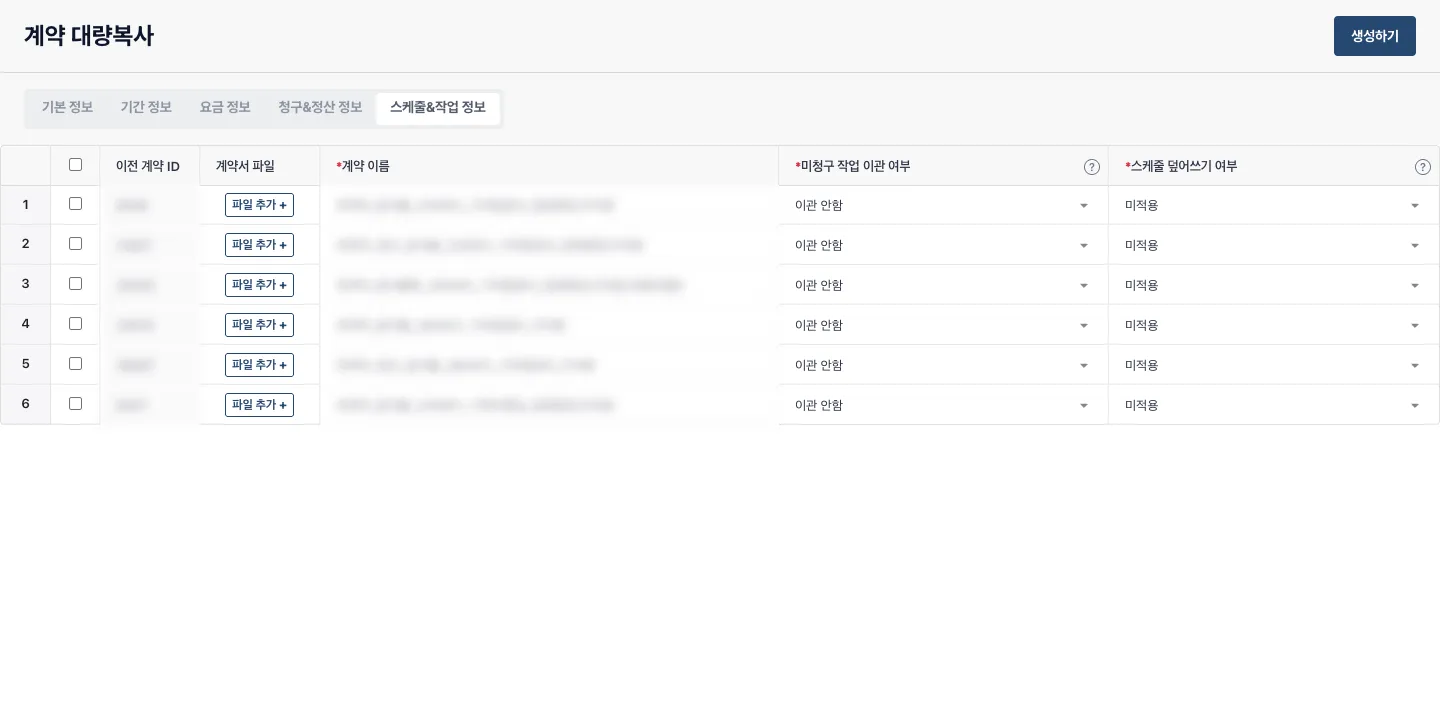
Discounts and surcharges valid for the new contract term carry over. The Allbaro disposal plan is also needed for later handover documents, so I required a copy attempt rather than making it optional. I distinguished how each copy item applies alongside the selectable transfers.
| Option | Application | Description |
|---|---|---|
| Task-amount transfer | Opt-in | Move unbilled work to the new contract (same logic as re-contract transfer) |
| Schedule reassignment | Opt-in | Link the previous contract’s courses and schedules to the new contract |
| Discount/surcharge copy | On | Carry over discounts/surcharges valid for the contract period |
| Allbaro disposal-plan copy | Mandatory | Copy it to the new contract (contract still succeeds if it fails) |
Asynchronous Processing and Exceptions
Keeping Created Contracts and Following Up on Failed Items
A bulk copy of up to 300 contracts must not stop because one item fails. With developers, I defined separate results for contract creation and disposal-plan copying so completed work would not need to be repeated.
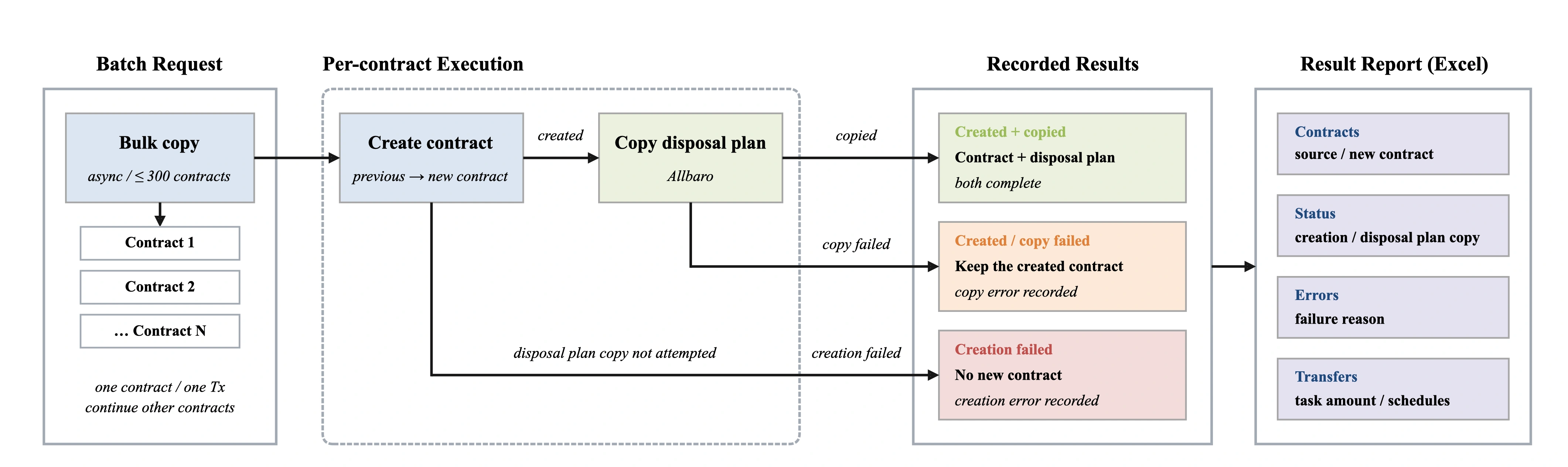
Even after input validation passes, the server can fail to create a contract if its source is missing or creation conditions are not met. I specified independent processing for each contract in the asynchronous batch, recording failure reasons while allowing other contracts to continue. A failed contract creation also skips the disposal-plan copy.
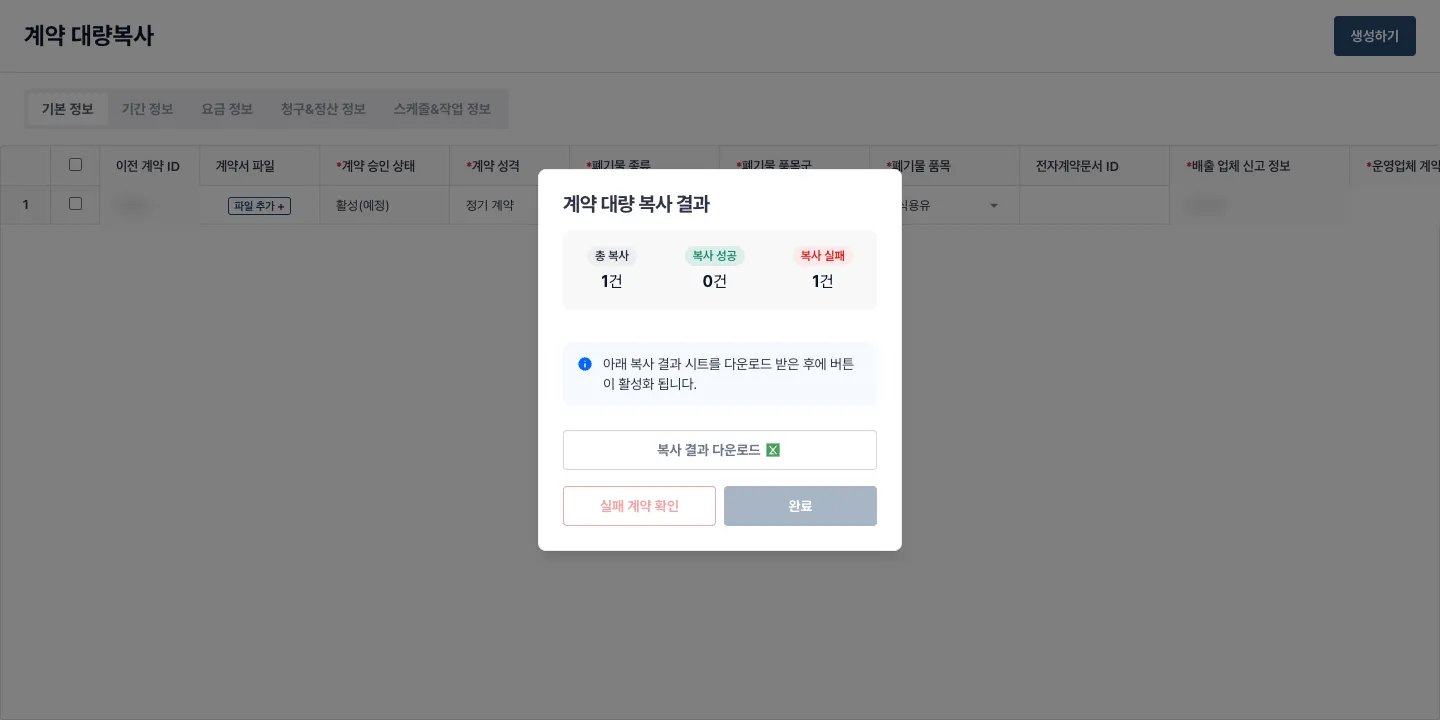
If the contract is created but its disposal-plan copy fails, the contract is kept. Cancelling a completed contract because the plan failed to copy would make operators repeat work already done. Separating the two results lets them follow up on the uncopied plan without duplicating an existing contract.
I specified progress during execution and total request, success, and failure counts afterward. The Excel results include source and new contracts, failure reasons, changed schedules, and transferred work. Operators can compare the actual creation results and continue the follow-up work that remains.
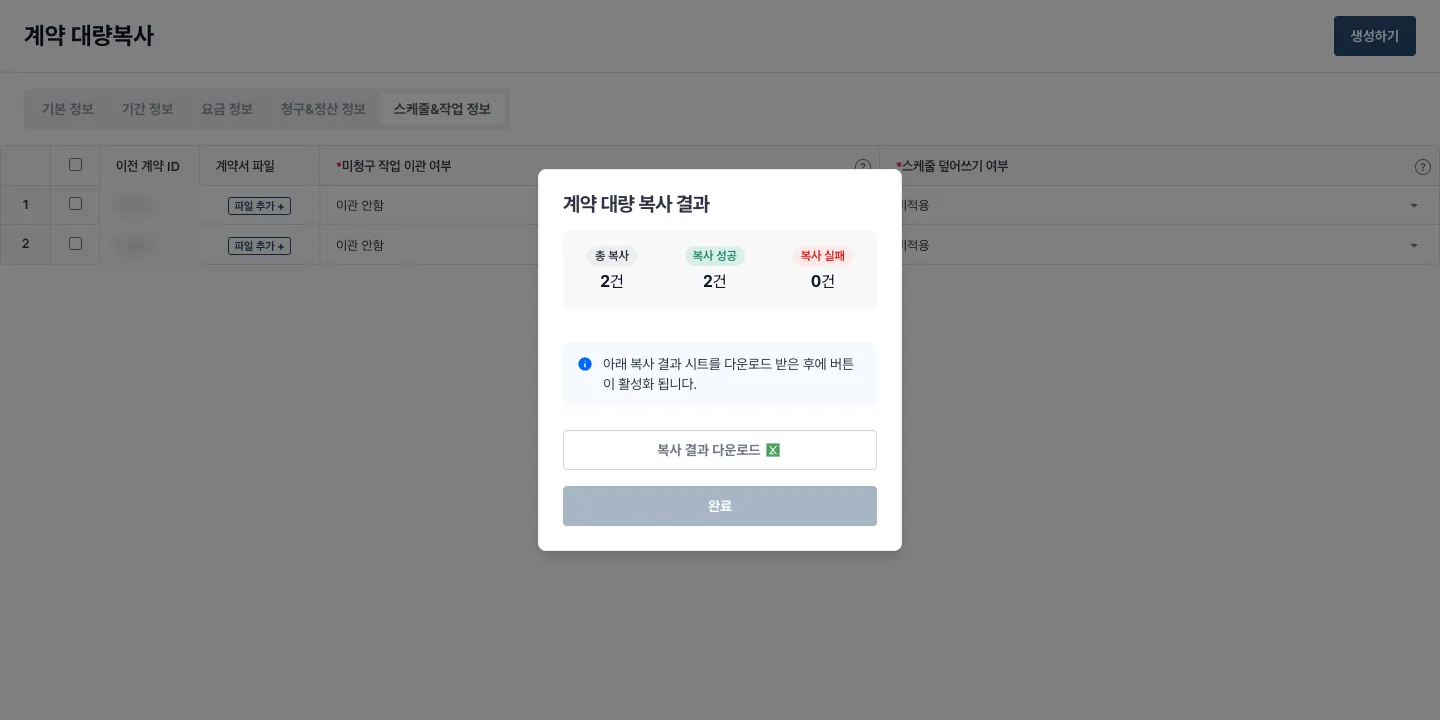
I also distinguished an item excluded by automatic-transfer conditions from an error during an attempted transfer. These require different follow-up checks, so the results record eligibility exclusions and processing errors separately.
Results and Lessons
Connecting Bulk Creation with Collection and Billing
The workflow changed from creating re-contracts individually from an Excel list to loading existing contracts together, editing only what changes, and creating the new contracts in one batch. Collection manuals, notes, and tags carry over, and invalid input can be corrected before creation. Familiar editing in rows and columns remains, while repeated information copying and creation steps are reduced.
Collection-work and schedule transfers are selected during contract creation and processed at the actual contract transition. Creation and transfers previously handled across three teams became part of the bulk-copy workflow. After the re-contract process redesign and bulk copy were introduced together, manual support requests fell from 80 to 27.
Post-adoption survey feedback indicated that re-contract work previously taking four to five hours could be completed in two to three hours.
| Metric | Before | After |
|---|---|---|
| Manual support after re-contract creation | 80 requests | 27 requests |
| Re-contract work time (survey) | 4–5 hours | 2–3 hours |
The planning challenge extended beyond how many contracts could be created at once. It required retaining the familiar workflow while considering collection and billing after contract transition. Distinguishing transfer eligibility, execution timing, and the items needing follow-up made it possible to connect multiple re-contracts into one workflow.